Organization Setup
After installing Hyperstone and creating your account, you'll need to create or join an organization. Organizations are the foundation of team collaboration in Hyperstone, providing a shared workspace for projects, assets, and team members.
Create Organization
If you're starting a new team or studio, you'll want to create your own organization.
Step 1: Navigate to Organization Creation
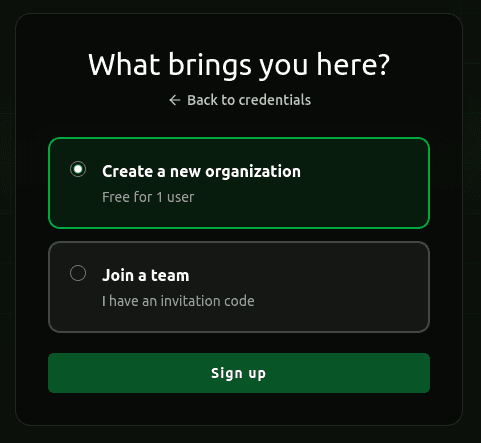
After signing up, you'll be automatically directed to the organization creation page. If you need to create an additional organization later, you can access this from the organization dropdown in the top navigation.
Step 2: Enter Organization Details
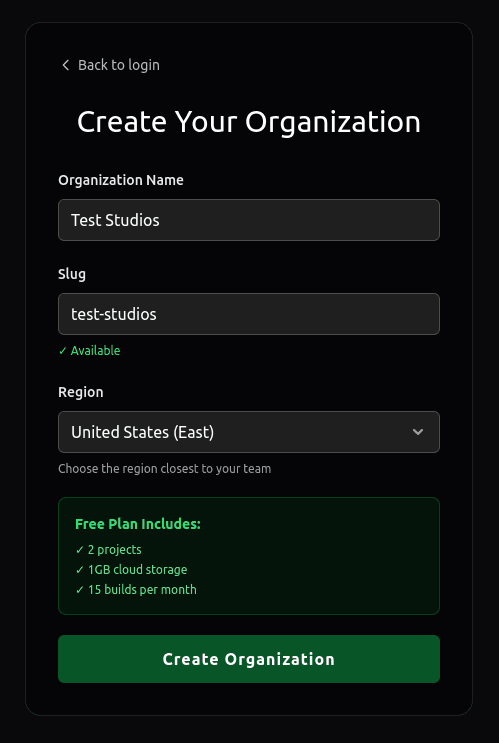
Fill in the following information:
- Organization Name: Your team or studio name (e.g., "Pixel Studios", "Game Dev Team")
- Slug: A unique URL-friendly identifier for your organization (auto-generated from the name, but you can customize it)
- Region: Choose the server region closest to your team for optimal performance
- United States (East)
- United States (West)
- Europe (Frankfurt)
- Asia (Singapore)
Step 3: Review Free Plan Benefits
The free plan includes:
- ✓ 2 projects
- ✓ 1GB cloud storage
- ✓ 15 builds per month
- ✓ Version control with Fossil
Step 4: Create Your Organization
Click Create Organization to finalize the setup. You'll automatically be assigned as the Owner of the organization with full administrative access.
What Happens Next?
After creating your organization:
- You'll be redirected to the main dashboard
- You can start creating projects immediately
- You can invite team members from the Members page
- Configure organization settings and integrations
Join Organization
If you've been invited to join an existing organization, follow these steps to accept the invitation.
Step 1: Organization Owner Sends Invitation
An existing organization owner or lead must first send you an invitation:
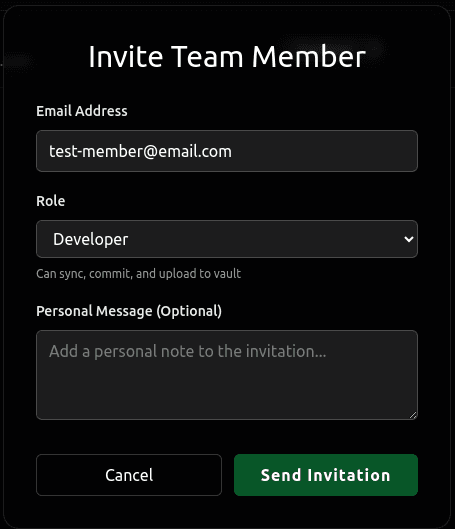
- They navigate to the Members page in Hyperstone
- Click Invite Member
- Enter your email address
- Select your role from the dropdown:
- Developer: Can sync projects, commit changes, and upload to the asset vault
- Lead: All Developer permissions plus ability to invite members, lock/unlock files, and create projects
- Note: The Owner role cannot be assigned through invitations for security reasons
Step 2: Invitation Code Generated
After sending the invitation:
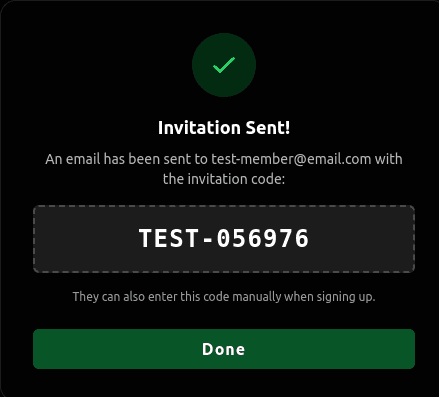
- A unique invitation code is automatically generated
- The code is sent to your email address
- The code format is:
ORGNAME-ABC123 - The invitation is valid for 7 days
Step 3: Accept the Invitation
You can accept the invitation in two ways:
Method A: Email Link (Recommended)
- Check your email for an invitation from Hyperstone
- Click the Accept Invitation button in the email
- You'll be automatically added to the organization
- Sign in to Hyperstone to access the organization's projects
Method B: Manual Code Entry
If you prefer to enter the code manually or the email link doesn't work:
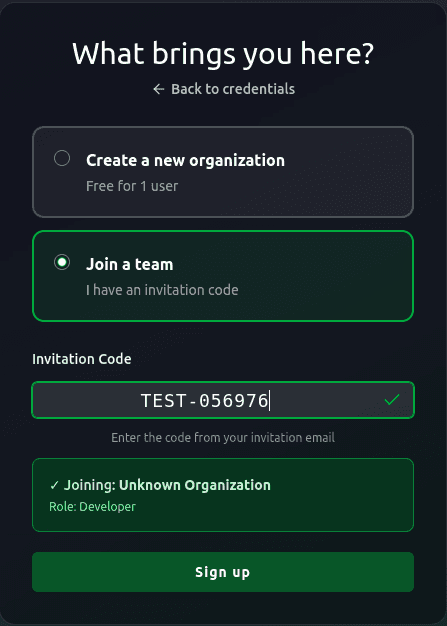
- During signup, select Join a team when asked "What brings you here?"
- Enter the invitation code provided in the email
- Format:
ORGNAME-ABC123 - The code is case-insensitive
- Format:
- You'll see a confirmation showing:
- Organization name you're joining
- Your assigned role (Developer or Lead)
- Complete the signup process
- You'll be added to the organization automatically
Understanding Your Role
When you join an organization, you'll be assigned one of these roles:
- Developer: Can sync projects, commit changes, and upload to the asset vault
- Lead: All Developer permissions plus ability to invite members, lock/unlock files, and create projects
- Owner: Full administrative access including organization settings and billing (can only be promoted by existing owners after joining)
See the Roles & Permissions guide for detailed information about each role.
Invitation Expiration
- Invitation codes are valid for 7 days from creation
- If your code has expired, contact the person who invited you to resend the invitation
- You can check the invitation status by entering the code during signup